Your files stay here
No uploads or account needed.
Processed directly in your browser.
 Paper Switch
Put receipt photos or photographed pages into one PDF. Arrange the files before combining; the text in a photo remains an image.
Useful tools for your images and QR codes.
Turn text or a link into a QR code. Add your color and logo.
Create QRREADUpload a QR image to extract and copy its contents.
Read QRChange pixel dimensions, with optional aspect ratio lock.
Edit imageRemove a solid background color and save as transparent PNG.
Edit imageProcessed on your device
No uploads or account needed.
Processed directly in your browser.
Preserve original vectors where possible.
Scanned images remain images.
The whole document or selected pages.
Download right after conversion.
Complex SVG filters, CSS and external fonts may look different. External images and scripts are not supported. Check important documents after conversion. PDF text may become paths; links, forms and animation are not preserved.
Password-protected PDFs are not supported. Limits: 20 files, 50 MB each, 100 MB total, and 100 pages per PDF. Complex files may take longer.
WEBP is an image format: selectable text and vector editing are not preserved. WEBP to PDF creates one PDF per image. Transparency becomes white; animation uses the first frame.
PDF to TXT combines selected pages into one UTF-8 file. Pages without text use OCR in the selected language, which takes longer and may misread small text or handwriting. TXT to PDF wraps UTF-8 text on A4 (200,000 characters, 100 pages). TIFF output is uncompressed and can be large; multipage TIFF becomes one multipage PDF.
Choose separate PDFs or combine files in list order. Transparency becomes white. Image text is not converted to editable text.
Selected files are processed in your browser. Download the results before closing this page.
Select One PDF in the output options, arrange the files using Move up and Move down, then convert. Separate files creates an individual PDF for each input instead.
Up to 20 files, 50 MB per file and 100 MB total input. Total output is limited to 150 MB. Large image decoding also depends on device memory.
Put the photos in reading order before combining them. Rotate sideways photos first and inspect the resulting pages. Combining photos into a PDF does not make photographed text searchable or editable.
A PDF container can be larger than the original JPG. If you need a smaller submission, compress copies of the photos first and rebuild the PDF. Keep enough resolution for small text and check the final file against the receiving site’s limits.
A photographed document becomes a PDF page, not an editable text document. Our original sample report lets you compare the picture and the generated PDF directly.
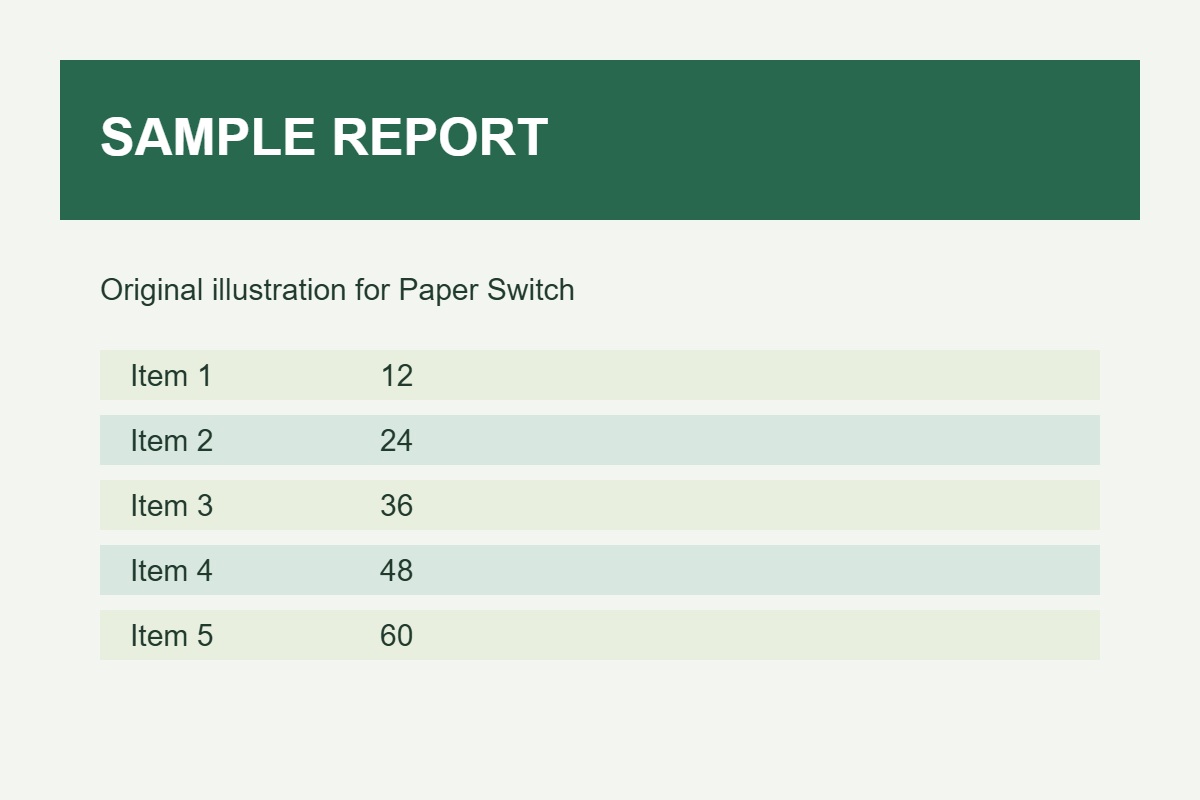
Original: 53.9 KB, Result: 117.2 KB
These measurements are from one test file, not a promised result for every file. Sizes use 1 KB = 1,000 bytes.
For several receipts in one document, choose the combined PDF option and check the file order first. Use separate PDFs when each picture needs its own attachment. Keep the original photo if you will crop or edit it later.
A PDF can be larger than the JPG because it adds a document container and may encode the picture differently. Converting again will not restore blurred text. Retake an unreadable photo with even lighting before converting; use PDF compression only after checking readability.